
8 min read
How to Use a Barcode Scanner Emulator (Step-by-Step Guide)
A practical step-by-step guide to using a barcode scanner emulator for barcode scanner testing, QA workflows, and POS testing without real hardware.
8 min read
Keyboard wedge and barcode emulator are often mentioned in the same discussions, which is exactly why teams mix them up. They are related, but they are not the same thing. A keyboard wedge describes how a scanner sends data into your software. A barcode emulator is a tool used to reproduce that behavior without the physical scanner.
A keyboard wedge scanner behaves like a keyboard. When it reads a barcode, it sends characters into the active field as if someone typed them very quickly. That is one of the reasons wedge scanners are popular: many applications can accept scanner input without a custom device integration.
From the application’s point of view, that sounds simple. In practice, it still brings important behavior along with it:
Those details are why barcode scanner testing often exposes bugs that normal form testing does not.
A barcode emulator reproduces scanner-like input from software. Instead of grabbing a physical scanner, you configure a barcode value and trigger the scan behavior from your desktop. Good tools let you change timing and suffix rules so the result looks much closer to keyboard wedge input than manual typing or copy-paste.
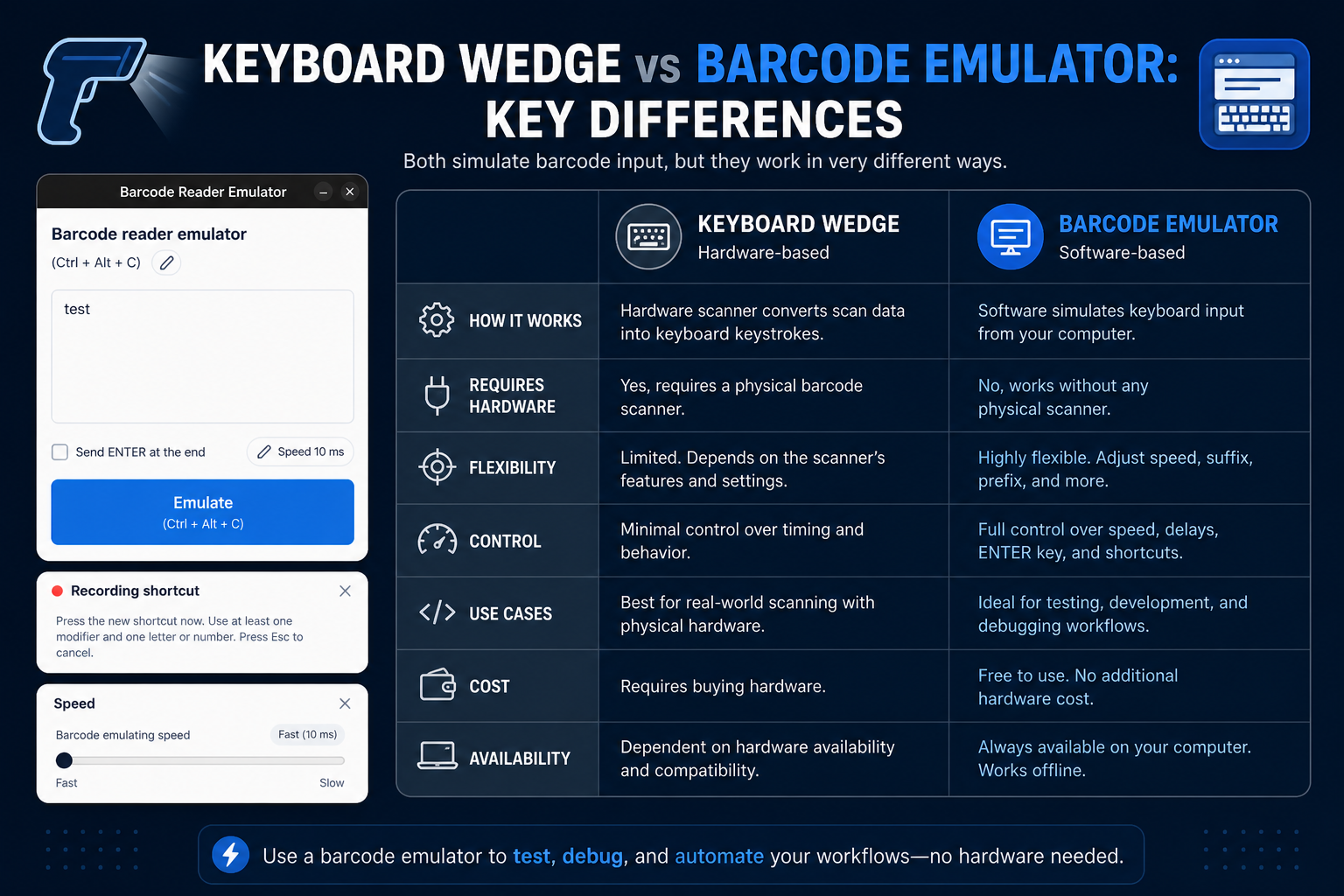
That makes the emulator a development and QA tool. It does not replace the definition of keyboard wedge. It helps you simulate barcode scanner behavior when hardware is unavailable, inconvenient, or simply slower than the task you are working on.
The cleanest way to think about it is this:
Once you separate those two ideas, a lot of confusion disappears. You stop asking whether the emulator “is” a wedge and start asking whether it reproduces the wedge behavior your application depends on.
This is not just a terminology argument. Teams make bad testing decisions when they mix these concepts up. They either assume a hardware scanner is required for every small workflow change, or they assume a barcode emulator can replace every hardware validation task.
Neither approach is great. The first slows development down. The second gives a false sense of confidence. Understanding the distinction helps you pick the right tool for the right layer of testing.
If you are building a form, debugging focus handling, checking Enter suffix behavior, or doing fast POS testing on a workstation, the emulator is usually the better choice. It is faster to configure, easier to repeat, and more practical for everyday development.
This is also why tools like Barcode Scanner Emulator are useful. They let you simulate barcode scanner behavior during normal development instead of turning every bug reproduction into a hardware scheduling problem.
Use the real scanner when you need to validate the device path itself:
A barcode emulator cannot tell you whether a particular scanner model disconnects after sleep or whether a locked-down POS terminal blocks a device mode change. That is not a flaw in the emulator. It just means the two tools answer different questions.
If you are trying to answer “Does this screen behave correctly when a barcode is scanned?” start with the emulator.
If you are trying to answer “Does this exact scanner and environment behave correctly in production conditions?” use the real wedge scanner.
That simple split is usually enough to make barcode scanner testing and POS testing much more predictable.
For most teams, the right split is straightforward:
This gives you speed without pretending hardware no longer matters. It also makes hardware sessions more valuable because they focus on issues only hardware can reveal.
Suppose a POS product search field works when you type manually but fails when scanned values arrive rapidly with Enter. That is a classic case for an emulator because you can test timing and suffix behavior repeatedly.
Now imagine the same flow works on your development laptop but fails on the real checkout terminal because the scanner configuration is different. That is where the physical keyboard wedge scanner becomes the necessary final check. Both tools matter, just at different points in the workflow.
Keyboard wedge and barcode emulator are not competing ideas. One describes how many scanners behave. The other gives you a practical way to reproduce that behavior for testing. Once you separate those roles, your barcode scanner testing strategy becomes much easier to reason about and much easier to maintain.
Helpful next step
If you want to try these workflows in practice, start with the Barcode Scanner Emulator tool and then come back to the rest of the blog for more testing patterns.
8 min read
A practical step-by-step guide to using a barcode scanner emulator for barcode scanner testing, QA workflows, and POS testing without real hardware.
9 min read
A practical guide to POS testing without real hardware, including barcode scanner testing, staged workflows, and the limits of hardware-free validation.
9 min read
A complete guide to barcode emulators, including how they work, who uses them, where they fit into barcode scanner testing, and where they do not.